Changing Location Symbols and Labels
The font, size, color, and position (above or below) of location labels on the map can be changed either by using the Map/Settings menu item or by loading a configuration file containing different specifications. These changes will take effect immediately. The column used for labeling cannont be specified in a configuration file; to change the column used, the Map Settings dialog must be used, or the data file must be re-loaded and the desired column name specified in the data loading dialog.
The Map/Settings menu item opens the following dialog to allow configurable map settings to be changed.
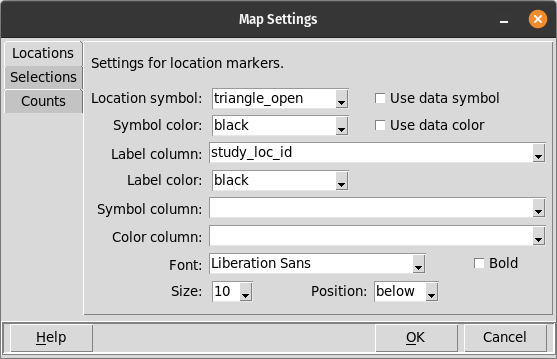
The type and color of location symbols, and the labeling for those symbols, can all be changed. The data column used for labeling, as well as the font, font size, weight, and label position can also be changed. The dialog has three tabbed pages, each of which has settings used for different purposes:
The Locations page contains settings that affect the display of location markers and labels. A location marker is displayed for every row in the data file that has geographic coordinates.
The Selections page contains settings that affect the appearance of selection markers that appear on the map when you click on a location marker on the map or click on a row of the data table.
The Counts page contains settings that affect the appearance of the labels that appear to the right of location markers and that display the number of data (table) rows at that location.
The controls on each page are described in the following sections.
Locations page
These settings affect the display of location markers and labels.
- Location symbol
The symbol that is used for the location marker, unless symbols are specified in the data table. A symbol may be selected from a drop-down list. The items in this list include the built-in symbols plus any additional symbols that have been specified in a configuration file or imported with the File/Import symbol menu option.
- Use data symbol
When checked, then if symbol names are specified in the data file, they will be used instead of the default location symbol. If this is not checked, the default location symbol will always be used.
- Symbol color
The color to be used for the default symbol, unless symbol colors are specified in the data table. The symbol color can be chosen from a drop-down list of all of the built-in colors.
- Use data color
When checked, then if color names are specified in the data file, they will be used instead of the default location color. If this is not checked, the default location color will always be used.
- Label column
The column from the data source that is used to label each location. The column can be chosen from a drop-down list containing the names of all columns in the data table. If no labels are to be shown, the blank entry at the top of the drop-down list should be selected.
- Label color
The color to be used for the label for each location marker. The label color can be chosen from a drop-down list of all of the built-in colors.
- Symbol column
The name of the column in the data table that contains symbol names, to be used as a location marker instead of the default symbol. If this column does not contain any valid symbol names, the default symbol will be used instead. The Use data symbol setting must be checked for this symbol specification to be used.
- Color column
The name of the column in the data table that contains color names, to be used to color the location markers instead of the default color. If this column does not contain any valid color names, the default color will be used instead. The Use data color setting must be checked for this color specification to be used.
- Font
The font family to be used to display the label can be selected from a drop-down list. This list includes all fonts that are available on the computer.
- Bold
This checkbox controls whether or not the label is shown in a bold face.
- Size
The size for the location label can be chosen from a drop-down box. Alternate values can also be entered if desired.
- Position
Labels can be displayed either above or below the location marker, and the desired position can be chosen from this drop-down box.
Selections page
These settings affect the display of selection markers.
- Marker symbol
The symbol that is used to highlight locations that have been selected on the map. A new symbol can be selected from the dropdown list. The items in this list include the built-in symbols plus any additional symbols that have been specified in a configuration file or imported with the File/Import symbol menu option.
- Color
The color to be used for the selection symbol. The symbol color can be chosen from a drop-down list of all of the built-in colors.
When a new selection symbol is chosen, all locations on the map that are subsequently selected by clicking on the map or table will be marked with the newly selected symbol. Previously marked symbols will remain marked as they were.
Counts page
These settings affect the display of data row counts for each location. Data row counts are only shown when there is more than one data row for a location.
- Font
The font family to be used to display the count can be selected from a drop-down list. This list includes all fonts that are available on the computer.
- Size
The size for the count label can be chosen from a drop-down box. Alternate values can also be entered if desired.
- Color
The color to be used for the count label. The label color can be chosen from a drop-down list of all of the built-in colors.
- Offset
The distance, in pixels, from the location point that the count label will be displayed. Most of the built-in symbols have a half-width of 8 pixels. The default offset of 12 pixels places the count label 4 pixels to the right of the location marker. If a larger location marker is used, the offset may need to be increased.
- Show counts
This checkbox controls whether or not count labels are displayed. It has the same effect as using the Alt-C keystroke when the map interface has the focus.
The size of labels can be changed by using either the Map/Settings dialog or by loading a configuration file with a label size specification. The size of location symbols can be changed by importing new symbols using the File/Import symbol menu option or by specifying additional symbols in a configuration file. Most of the built-in symbols are 16x16 X bitmaps, though not all use the entire 16x16 grid. Larger or smaller bitmaps can be created using several different software tools.