Finding or Creating Candidate Keys
A candidate key is any single column or set of columns that has a unique value (or combination of values, for a set of columns) for each data row. In a relational database, each table should have a primary key, which is also a candidate key.
Tools for Managing Candidate Keys
Mapdata has several features to assist in the identification, or creation, of candidate keys:
The Table/Data types menu display can be used to identify individual columns that are candidate keys for the data set as a whole. Any column that has no missing values, and that has a number of unique values equal to the number of rows in the entire data set, is a candidate key for the entire table.
The Table/Counts by location menu display will include any columns that are individually candidate keys for the set of latitude and longitude values (either the entire table or a selected subset). Note that these are not necessarily candidate keys for the data table as a whole.
The Table/Find candidate keys menu item allows exploration of whether there are any multi-column candidate keys for the entire data set or a selected subset, or single-column candidate keys for a selected subset. This dialog is shown and described below.
The Table/Add unique row ID menu item will create a unique row identifier for every row of the data table. This new identifier will be a candidate key. This dialog is shown and described below.
The Table/Add coordinate key menu item will create a unique row identifier for every unique set of latitude and longitude values (in either the entire table or a selected subset).
The Table / Recode data menu item can be used to replace missing values and resolve duplicate values, and thereby create candidate keys.
Finding Candidate Keys
The Table/Find candidate keys menu item opens the following dialog to allow single- or multiple-column candidate keys to be found.

This dialog displays a list of columns in the data table, allows one or more to be selected, and checks whether they qualify as a candidate key. The check may be performed for all data in the data table or only for the data rows that are highlighted in the main data table and on the map.
The results of the check are displayed below the list of columns. A set of columns may fail to qualify as a candidate key either because one or more of them contains a missing (null) value or because the set includes duplicate values. The results will indicate whether any null values are present, and whether there are duplicated rows.
The list of columns that is displayed does not include any that are themselves, singly, a candidate key for the entire data set. Any column in the Table/Data types menu summary that has no missing values, and a number of unique values that is equal to the number of rows in the data set, is itself a candidate key for the entire data set and for any selected subset.
The buttons at the bottom of the dialog have the following actions:
Source Data – Displays all the data for the column(s) to be evaluated.
Duplicates – Displays all of the data values that are duplicated, with a count of the number of duplicates for each. This button can only be selected when duplicates are found.
Select – When there are duplicates, selects all of the rows in the data table and on the map that are in the set of rows with duplicates. This replaces any existing data selection. If this dialog is already operating on a selected set of rows, rather than the entire data table, then this operation can change the data subset used by this dialog.
Creating Candidate Keys
The Table/Add unique row IDs menu item opens the following dialog to allow a single-column candidate key to be assigned.
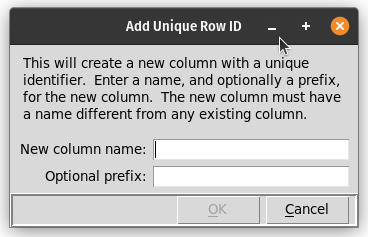
The dialog adds a new column to the data table that contains a unique identifier for every row of the table. The dialog prompts for the name of the new column and, optionally, a prefix for the identifiers. The new row identifiers will be numeric, left-padded with zeroes. If a prefix is specified, it will be separated from the numeric part of the identifier with an underscore.
Row identifiers created using this dialog will always be stored as text, even when they are purely numeric.