Finding Duplicate Rows
The Table/Find duplicate rows menu item displays a dialog with a table that shows all of the sets of rows that have exactly the same data in all columns except for single-column candidate keys.
Initially all columns except for single-column candidate keys are selected on the left side of the dialog, and all rows in the data table are automatically evaluated when the dialog is opened.
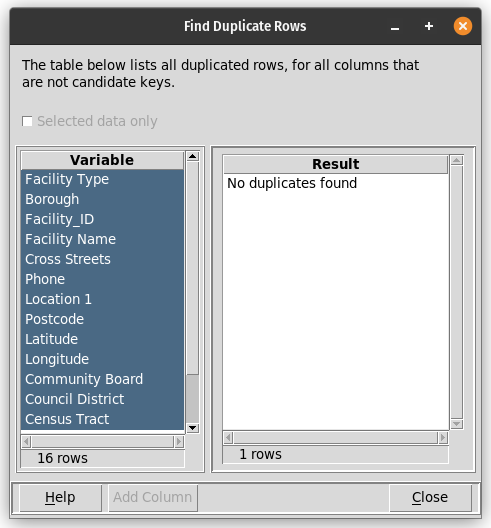
If no duplicates are found, the table will display a “No duplicates found” message as a result, as shown above. If duplicates are found, the table on the right side of the dialog will have one row for each different set of values that is duplicated. The first column of this table will have an identifier of the form “Duplicate set n”, where n will take values 1, 2, 3,… as necessary to distinguish the different sets. The second column will have the number of data table rows that have the same data values for this duplicate set. The remaining columns of the table will be columns of the data table with the values for this duplicate set.
If duplicates are found, the “Add Column” button at the bottom of the dialog will be enabled, and clicking on the button will prompt for the name of a data table column and then populate rows of that column with the duplicate set identifiers.
If duplicates are found in the entire data set, the “Selected data only” checkbox will be enabled. This will allow the presence of duplicated rows to be evaluated for only selected subets of the data. The analysis will be immediately updated if changes are made to the data selections on the map or data table.
If duplicates are found, the table of duplicates that is displayed by this dialog can be saved to a file with the Ctrl-S keystroke.
Alternate sets of columns can be evaluated by clicking (and Shift- and Control-clicking) on column names listed on the left side of the dialog.