Calculating Distances Between Locations
The Table/Calculate distances menu item opens the following dialog to allow distances to be calculated between locations that are displayed on the map.
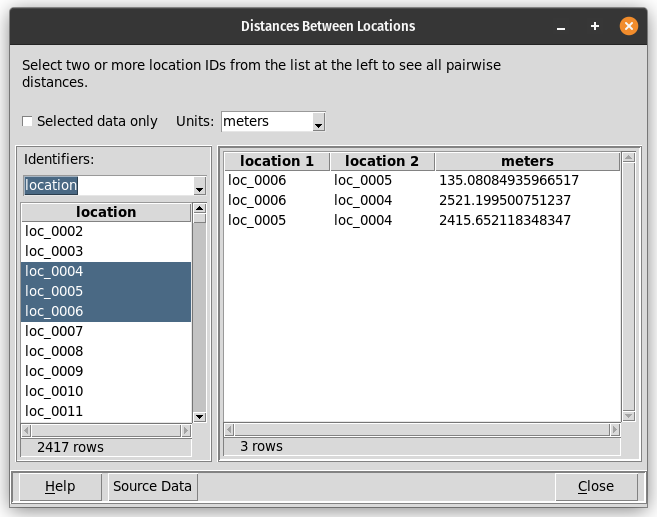
To calculate distances between locations, there must be a candidate key column that uniquely identifies each set of latitude and longitude coordinates. The Table/Counts by location menu item will display any unique location identifiers if they exist. If unique location identifiers do not exist, they can be created using the Table/Add coordinate key menu item. If there are multiple candidate keys for location coordinates, this dialog allows one of them to be chosen for the distance calculation.
This dialog prompts for:
Whether to use all data in the data table or just the subset that has been selected (e.g., by clicking on the table or map).
The units for the calculated distances. By default, distances are shown in meters. Alternative units are kilometers, feet, and miles.
If there are multiple candidate keys for location coordinates, one of the candidate key columns must be chosen from a dropdown control on the left side of the dialog. This dropdown control is shown in the figure above. If there is only one candidate key column, the dropdown control will not be shown.
Two or more location identifiers, from the list on the left side of the dialog. These can be selected by clicking on one location identifier and then shift-clicking or control-clicking on others.
After two or more location identifiers are selected, every pair of identifiers and the distance between those locations will be shown in the table on the right side of the dialog. This table can be saved with the Ctrl-S hotkey.
The “Source Data” button will display a table of the latitude and longitude coordinates for all of the selected locations. This table can be saved with the Ctrl-S hotkey.