Importing Data
mapdata uses a single file or table of data, where the only requirement is that the table have columns for geographic coordinates such as latitude and longitude values. Data can be imported from any of three different formats:
Comma-separated value (CSV) files or similar delimited formats.
Spreadsheets, either Open Document (*.ods) or Excel (*.xlsx, *.xls).
Database tables, from client-server or file-based databases.
There are four different methods by which data can be imported:
Command-line options can be used to specify the data source, the names of the columns containing geographic coordinates, and other optional information.
If upon starting, mapdata finds a configuration file and that file identifies a data source in the
connectsection and geographic coordinate columns in thedefaultssection, those setting will be used to import the data table and initialize the map.When started from a GUI interface, such as when using a menu or shortcut, and without command-line parameters or configuration settings, mapdata will present a wizard–a series of dialogs–that will prompt for the data source and other information.
When mapdata is already running, options on the File menu allow a new data table to be imported to replace the one currently being used.
If mapdata will be used repeatedly with the same data source, then creating a shortcut that includes command-line options, or using a configuration file, will simplify data import on repeated launches of the program.
Data Table Requirements
There are very few strict requirements for the format or content of data files or tables to be imported, and most of these will ordinarily be met by most data sources. The requirements are:
There must be a single header row with a unique name for every data column.
Data rows should immediately follow the header row.
No data row should have more data values than column headers.
There must be columns for latitude and longitude coordinates. Geographic coordinates are expected to be in decimal degrees in WGS84 coordinates by default, though alternate coordinate reference systems (CRS) can be used if the corresponding CRS identifier is provided when data are imported. Geographic coordinates may be missing for some, but not all, data rows.
The first three of these requirements can only be violated if the data source is a CSV file or spreadsheet.
There are no strict limitations on column header names, though if, after import, data will be selected using a SQL query, some column names may be modified to conform to requirements for SQL object names (specifically, invalid characters will be replaced by underscores).
Importing Data With Command-Line Specifications
When launching mapdata using command line arguments, the following flags and arguments can be used on the command line. Items in angle brackets must be replaced by appropriate values.
Options:
   -a <table>             The name of a database table to import.
   -c <color column>      The name of the column containing color
                          names
   -d <database>          The name of a client-server database from
                          which to import data
   -e <server>            The name of the server for a client-server
                          database
   -f <filename>          The name of the CSV file, spreadsheet file,
                          or file-based database to use.
   -g <image file>        The name of an image file to create
   -i <id column>         The name of the column containing location
                          identifiers
   -k <db type>           A one-letter code identifying the type of
                          client-server database from which to import
                          data.  Valid values are: 'p'-PostgreSQL,
                          's'-SQL Server, 'l'-SQLite, 'm'-MySQL,
                          'k'-DuckDB, 'o'-Oracle, 'f'-Firebird.
   -m <message>           Text to display above the map.  This should
                          be double-quoted
   -n                     Do not prompt for a password for client-server
                          databases.  By default, if a user name is
                          provided, a dialog box will be used to prompt
                          for the user's password
   -o <port>              The port for a client-server database.  If
                          omitted, the default port for the DBMS will
                          be used
   -p <projection>        The coordinate reference system (CRS) if a
                          projected coordinate system is used
   -r <script file>       The filename of a SQL script file to run
                          before importing a database table.
   -s <symbol column>     The name of the column containing symbol
                          names
   -t <sheet name>        The name of the worksheet to import data
                          from, for spreadsheet data sources
   -u <user name>         The name of a client-server database user
   -w <image_wait>        The time to wait before creating the image
                          file, in seconds (default is 12)
   -x <longitude column>  The name of the column containing longitude
                          values
   -y <latitude column>   The name of the column containing latitude
                          values
Latitude and longitude values in the data table are assumed to be in decimal degrees in the WGS84 datum. If they are in any other coordinate system, the CRS of that coordinate system must be provided by using the -p (projection) argument.
Instead of marking every location with the default symbol (a black open triangle), locations can instead be marked with distinct symbols and colors. The markers to use should be identified in the symbol and color columns of the data file. Either or both of these columns may be used. The default marker type and color can also be changed using settings in a configuration file.
If no command-line arguments are provided, mapdata will start in GUI mode. When command-line arguments are used, there are several different valid combinations of arguments for different purposes, as listed in a following section.
Importing from a CSV file
Required arguments are:
-f <filename>
-x <longitude column>
-y <latitude column>
Optional arguments are:
-p <projection>
-i <id column>
-s <symbol column>
-c <color column>
-m <message>
The -p (projection) argument must be used if the latitude and longitude are in any coordinate system other than WGS84.
Importing from a spreadsheet file
Required arguments are:
-f <filename>
-t <sheet name>
-x <longitude column>
-y <latitude column>
Optional arguments are:
-p <projection>
-i <id column>
-s <symbol column>
-c <color column>
-m <message>
The -p (projection) argument must be used if the latitude and longitude are in any coordinate system other than WGS84.
Importing from a file-based database
SQLite and DuckDB are file-based databases.
Required arguments are:
-k <db type>
-f <filename>
-a <table>
-x <longitude column>
-y <latitude column>
Optional arguments are:
-r <script file>
-p <projection>
-i <id column>
-s <symbol column>
-c <color column>
-m <message>
The db type argument must be either ‘l’ or ‘k’ for SQLite or DuckDB, respectively.
If a SQL script file name is provided, the script file will be run against the database before the table is imported. Mapdata supports SQL script extensions to provide additional features for SQL scripting and to standardize scripts across DBMSs.
Importing from a client-server database
Required arguments are:
-k <db type>
-e <server>
-d <database>
-a <table>
-x <longitude column>
-y <latitude column>
Optional arguments are:
-o <port>
-u <user name>
-n
-r <script file>
-p <projection>
-i <id column>
-s <symbol column>
-c <color column>
-m <message>
The database port only need be specified if the database is using a non-standard port.
If a user name is specified, mapdata will prompt for the user’s password unless the -n flag is also used.
If a SQL script file name is provided, the script file will be run against the database before the table is imported. The same database connection is used to run the script and import the data table, so the script can create temporary tables or views in the database for the data to be imported. Mapdata supports SQL script extensions to provide additional features for SQL scripting and to standardize scripts across DBMSs.
Specifying Data Import Using a Configuration File
Numerous configuration settings will be automatically read from configuration files on startup if one or more configuration files are found. Those settings can include specification of a data source and the names of columns with geographic coordinates.
If settings that are read from configuration files (possibly in combination with command-line arguments) are sufficient to identify a data source and geographic coordinate columns, then mapdata will use those settings to import data on startup.
Configuration settings that affect data import on startup are:
The Configuration Files documentation contains more details on these and other settings.
Importing Data with the GUI Wizard
If mapdata is started and there are no command-line arguments or configuration file settings that identify a data source and geographic coordinate columns, then mapdata will prompt for this information with a series of interactive dialogs. These dialogs act as a multi-step ‘wizard’ that allows interactive browsing of files and column names to find and specify the required information.
The first step of the data import wizard is to select the type of data source.
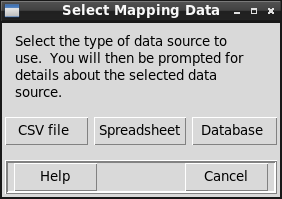
Each of the three buttons on this dialog will result in the display of a different dialog that is specific to the data type, i.e., for a CSV data, spreadsheet, or database data source.
The “Cancel” button will exit mapdata.py without selecting or displaying any data.
Open CSV Data File
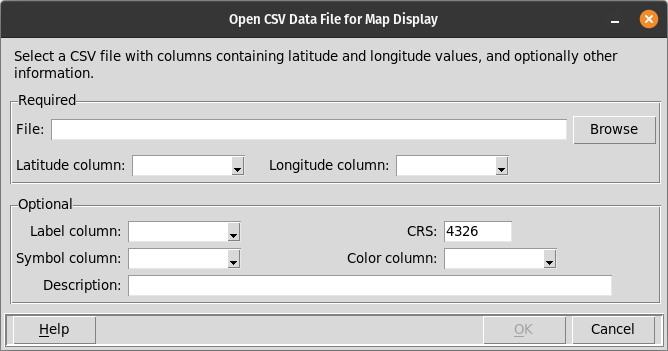
This dialog is displayed when mapdata.py is started in GUI mode and a CSV data source is selected, and also when the File / Open CSV menu option is selected.
This dialog is used to select the data file that will be shown in the application’s map and table displays. This dialog prompts for several pieces of information, some of which are required and some of which are optional. The “OK” button remains disabled until all of the required information is entered.
Required Information
- File
The name of the data file must be entered. This must be a comma-separated-value (CSV) file with an extension of “.csv”. The first line of the data file must contain column names. The filename may be typed into the prompt or the “Browse” button can be used to find and select the desired file.
- Latitude column
The name of the column in the data file that contains latitude values. Latitude values are expected to be in decimal degrees, in the WGS84 datum, by default. If the latitude (and longitude) values are in some other coordinate system, the appropriate Coordinate Reference System (CRS) value must be entered following the “CRS” prompt.
The drop-down list of column names will initially be empty, but will be populated after a valid CSV file has been identified.
- Longitude column
The name of the column in the data file that contains longitude values. Longitude values are expected to be in decimal degrees, in the WGS84 datum, by default. If the longitude (and latitude) values are in some other coordinate system, the appropriate Coordinate Reference System (CRS) value must be entered following the “CRS” prompt.
The drop-down list of column names will initially be empty, but will be populated after a valid CSV file has been identified.
Optional Information
- Label column
The name of a column in the data file that is to be used as a label for each location. The label will be displayed either above or below the marker for each location (below, by default, though this is configurable. If no column name is provided, locations on the map will not be labeled.
The drop-down list of column names will initially be empty, but will be populated after a valid CSV file has been identified.
- CRS
The Coordinate Reference System (CRS) code identifies the units, datum, and projection of the latitude and longitude values in the data file. The default value, 4326, corresponds to units of decimal degrees, in the WGS84 datum, and unprojected. If the coordinates are projected, the appropriate CRS must be entered.
mapdata.py does not provide a dropdown list will all valid CRS values. If the latitude and longitude values are projected, you must know the CRS value. If there is some uncertainty about the correct CRS value, the Map / Change CRS menu item can be used to change the CRS of a data file after it is imported.
- Symbol column
The name of a column in the data file that contains the names of symbols that are to be displayed at each location instead of the default symbol. mapdata.py includes 24 built-in symbols that can be used. Additional symbols can be loaded in a configuration file and using the File / Import symbol menu option.
The drop-down list of column names will initially be empty, but will be populated after a valid CSV file has been identified.
- Color column
The name of a column in the data file that contains the names of colors for the symbols at each location. The available color names are listed on the Colors page.
The drop-down list of column names will initially be empty, but will be populated after a valid CSV file has been identified.
- Description
Text to be displayed above the map on the main display window. This may describe the data set or contain other information helpful to the user.
Open Spreadsheet Data File
This dialog is displayed when mapdata.py is started in GUI mode and a spreadsheet data source is selected, and also when the File / Open spreadsheet menu option is selected.
This dialog has three pages.
Page 1:

Page 2:

Page 3:

On the first page the spreadsheet file must be identified. Either an OpenDocument (.ods) or an Excel (.xlsx and .xls) spreadsheet may be selected. The ‘Next’ button cannot be selected until a file name is entered.
The first page also allows an optional description of the data set to be entered. This description will appear above the map display.
The second page prompts for the name of the worksheet to read, and the number of initial rows to skip (if any). The name of the worksheet can be selected from a drop-down list of all of the worksheets in the workbook. The ‘Next’ button on this page cannot be selected until the sheet name is identified.
The third page of the dialog prompts for additional required and optional information that specifies what data to display, and how it is to be displayed. These elements of this page are described below. The ‘OK’ button cannot be selected until the latitude and longitude columns are identified. After the ‘OK’ button is selected, mapdata.py will create or update the map and table display to show the selected data.
Required Information
- Latitude column
The name of the column in the spreadsheet that contains latitude values. Latitude values are expected to be in decimal degrees, in the WGS84 datum, by default. If the latitude (and longitude) values are in some other coordinate system, the appropriate Coordinate Reference System (CRS) value must be entered following the “CRS” prompt.
- Longitude column
The name of the column in the spreadsheet that contains longitude values. Longitude values are expected to be in decimal degrees, in the WGS84 datum, by default. If the longitude (and latitude) values are in some other coordinate system, the appropriate Coordinate Reference System (CRS) value must be entered following the “CRS” prompt.
Optional Information
- Label column
The name of a column in the spreadsheet that is to be used as a label for each location. The label will be displayed either above or below the marker for each location (below, by default, though this is configurable. If no column name is provided, locations on the map will not be labeled.
- CRS
The Coordinate Reference System (CRS) code identifies the units, datum, and projection of the latitude and longitude values in the data file. The default value, 4326, corresponds to units of decimal degrees, in the WGS84 datum, and unprojected. If the coordinates are projected, the appropriate CRS must be entered.
mapdata.py does not provide a dropdown list will all valid CRS values. If the latitude and longitude values are projected, you must know the CRS value. If there is some uncertainty about the correct CRS value, the Map / Change CRS menu item can be used to change the CRS of a data file after it is imported.
- Symbol column
The name of a column in the spreadsheet that contains the names of symbols that are to be displayed at each location instead of the default symbol. mapdata.py includes 24 built-in symbols that can be used. Additional symbols can be loaded in a configuration file and using the File / Import symbol menu option.
- Color column
The name of a column in the spreadsheet that contains the names of colors for the symbols at each location. The available color names are listed on the Colors page.
Open Database Data Source
This dialog is displayed when mapdata.py is started in GUI mode and a database data source is selected, and also when the File / Open database menu option is selected.
This dialog has three pages.
Page 1:

Page 2:

Page 3:

The first page prompts for the type of database management system (DBMS) that is to be used, and the connection parameters necessary to connect to that database.
The supported DBMSs are:
PostgreSQL
SQLite
MariaDb/MySQL
SQL Server
Oracle
Firebird
DuckDB
The connection parameters that are needed differ for client-server databases and for file-based databases. SQLite and DuckDB are file-based databases, the others are client-server databases.
The first page of the dialog prompts for the following information for client-server databases:
- Server
The host name or IP address of the database server. This may be local or remote. If a host name is used, it must be present in the system’s hosts file. mapdata.py does not check this value.
- Database
The name of the database to be used. mapdata.py does not check this value.
- User
The name of the database user. This may or not be required, depending on the specific DMBS and how it is configured. mapdata.py does not check this value.
- Password
The database connection password for the specified user. This may or may not be required, depending on the specific DMBS and how it is configured. The password is obscured–shown as asterisks–when it is entered. mapdata.py does not check this value.
- Port
The port on the server that is used to connect to the database. The default port value for each of the client-server databases will be used if no alternate port is specified. mapdata.py does not check this value.
The ‘Next’ button on the first page of this dialog cannot be selected until values have been entered for the server and database for client-server databases.
For file-based databases, the first page of the dialog prompts for the following information:
- Database file name
The name of the file containing the database table with data to be mapped.
The ‘Next’ button on the first page of this dialog cannot be selected until values have been entered for the file name for file-based databases.
The second page of the dialog prompts for the name of the database table that contains the data to be mapped. The table name should be schema-qualified, if appropriate, for those DMMSs that support schemas. mapdata.py does not check this value.
The second page of the dialog also allows entry of SQL statements that will be executed prior to reading data from the selected table. The intended use of these SQL statements is to create (temporary) tables or views in the database to be read by mapdata.py if there is no base table that contains the desired information. The Open button reads in the contents of an existing SQL script file; the Save button saves the SQL commands in a new or existing script file, and the Edit button opens the SQL commands in an external editor. The Edit button is disabled if no editor has been identified, either by an environment variable named “EDITOR” or by specification in a configuration file.
The SQL statements entered on the second page of this dialog can use metacommands and substitution variables to implement conditional tests and loops. These features are described in the SQL Script Extensions section.
When the ‘Next’ button on the second page of the dialog is selected, mapdata.py will attempt to connect to the database and read data from the selected table. If any of the connection parameters are incorrect, mapdata.py will display an error message.
The third page of the database selection dialog prompts for additional required and optional information that specifies what data to display, and how it is to be displayed. These elements of this page are described below. The ‘OK’ button cannot be selected until the latitude and longitude columns are identified. After the ‘OK’ button is selected, mapdata.py will create or update the map and table display to show the selected data.
Required Information
- Latitude column
The name of the column in the database table that contains latitude values. Latitude values are expected to be in decimal degrees, in the WGS84 datum, by default. If the latitude (and longitude) values are in some other coordinate system, the appropriate Coordinate Reference System (CRS) value must be entered following the “CRS” prompt.
- Longitude column
The name of the column in the database table that contains longitude values. Longitude values are expected to be in decimal degrees, in the WGS84 datum, by default. If the longitude (and latitude) values are in some other coordinate system, the appropriate Coordinate Reference System (CRS) value must be entered following the “CRS” prompt.
Optional Information
- Label column
The name of a column in the database table that is to be used as a label for each location. The label will be displayed either above or below the marker for each location (below, by default, though this is configurable. If no column name is provided, locations on the map will not be labeled.
- CRS
The Coordinate Reference System (CRS) code identifies the units, datum, and projection of the latitude and longitude values in the data file. The default value, 4326, corresponds to units of decimal degrees, in the WGS84 datum, and unprojected. If the coordinates are projected, the appropriate CRS must be entered.
mapdata.py does not provide a dropdown list will all valid CRS values. If the latitude and longitude values are projected, you must know the CRS value. If there is some uncertainty about the correct CRS value, the Map / Change CRS menu item can be used to change the CRS of a data file after it is imported.
- Symbol column
The name of a column in the database table that contains the names of symbols that are to be displayed at each location instead of the default symbol. mapdata.py includes 24 built-in symbols that can be used. Additional symbols can be loaded in a configuration file and using the File / Import symbol menu option.
- Color column
The name of a column in the database table that contains the names of colors for the symbols at each location. The available color names are listed on the Colors page.
- Description
Text to be displayed above the map on the main display window. This may describe the data set or contain other information helpful to the user.